What is in Skarb.
Everything listed here is in the app today. Nothing on this page is planned, in beta, or held back for a later release. If it is not here, it is not built.
Workspaces
A workspace holds one part of your money: Family, Personal, Trip to Italy. Each has its own base currency, icon, categories, budgets, members and history. Two taps switch between them. When a trip ends, the owner archives its workspace: it leaves everyone's list, and nothing in it is lost. You share a workspace by invitation, with a link or a six-character code that works for seven days.
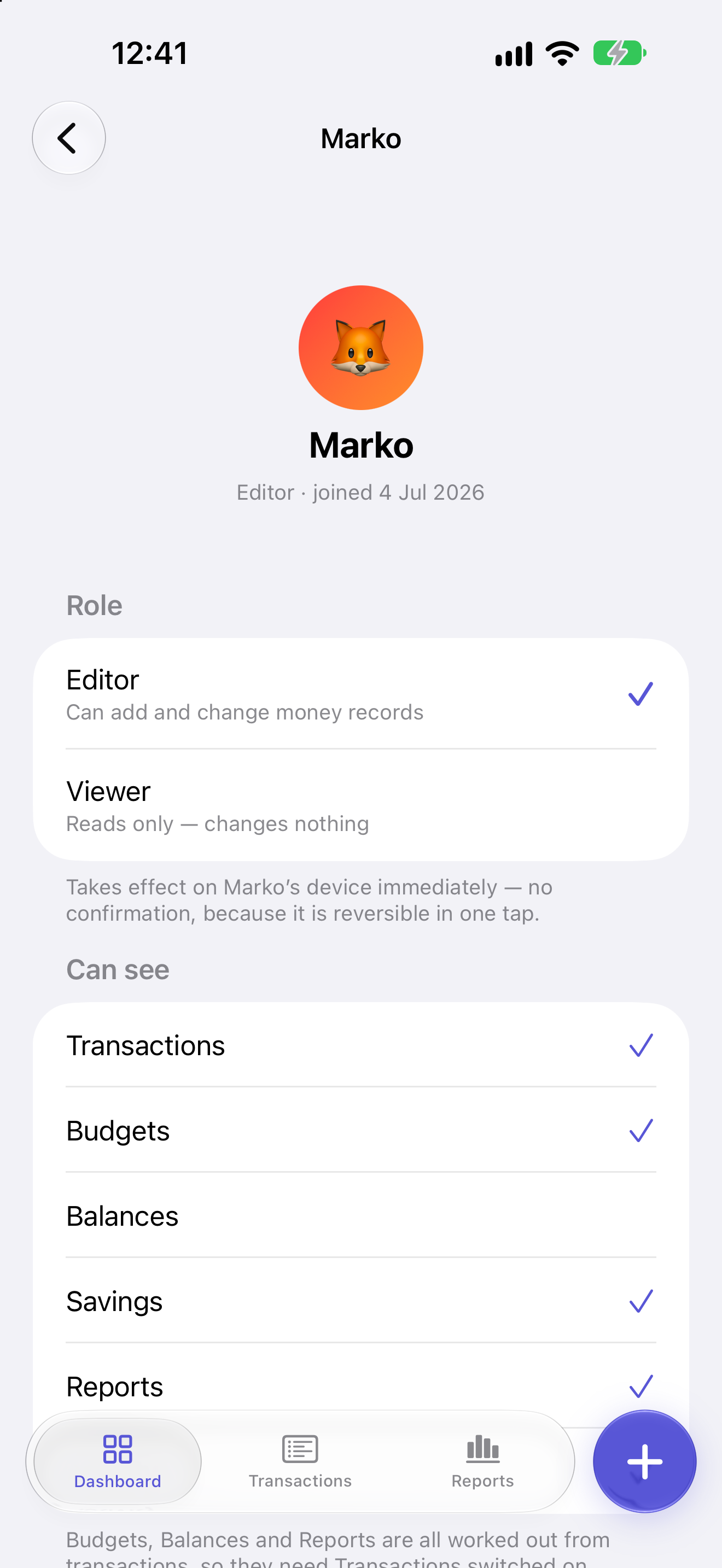
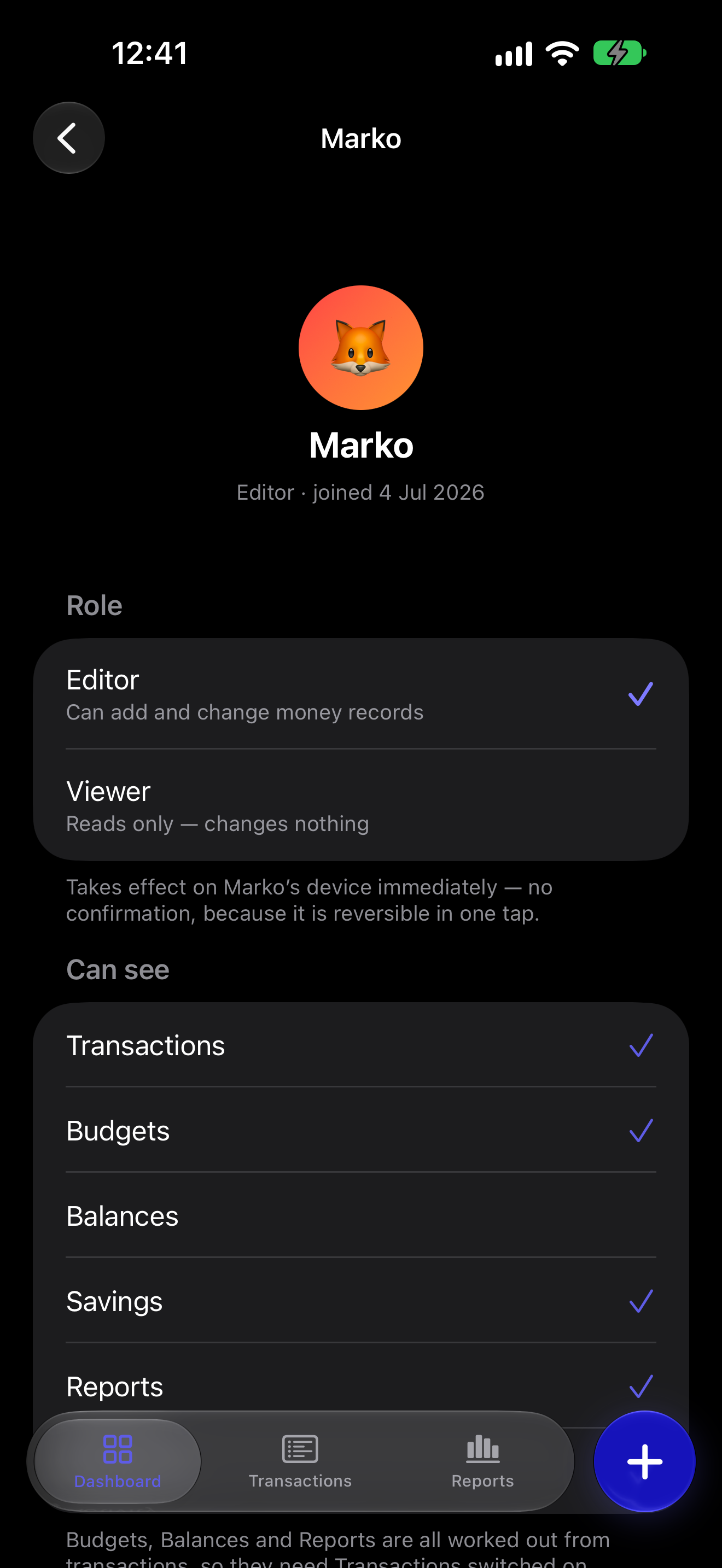
Each member has one of three roles. The owner runs the workspace: invites people, sets roles and decides who sees what. An editor adds, changes and deletes the money records they can see. A viewer reads what is shared with them and changes nothing. Membership alone does not grant sight of the money. A section the owner hides from a member is not there at all for them: no tab, no card, no notification. For each member, the owner picks which of these sections they can see:
- Transactions
- Budgets
- Balances
- Savings
- Reports
- Activity
Transactions
Every transaction is income or an expense. It has a category, a note, a merchant, a date and a currency, and the balance it moved through if the workspace keeps balances. One in another currency stores the day's rate, and you can type your bank's rate instead. Search finds a note or a merchant, and filters narrow the list by member, category, currency, balance or dates. A recurring transaction is added for you daily, weekly, monthly or on an interval you set. Up to five attachments per transaction, as photos, scans or PDFs, keep the evidence beside the money. Each person has 500 MB for attachments, and a Storage screen shows what uses it and lets you clear it.
There are three ways in. A receipt photo, a typed line such as coffee 3.20 yesterday, or your voice. All three fill in a draft. Nothing is written until you tap Add. The receipt photo is read once and then discarded, unless you attach it yourself. Typing and voice understand English and Ukrainian. All three need a connection; without one, you fill in the form yourself.
Categories
Every workspace starts with 12 categories, 9 for expenses and 3 for income, so the first transaction has somewhere to go. Then they are yours: create new ones, rename them and change their icons. Nest subcategories one level under a parent, and merge one category into another, which takes its subcategories and budgets with it. To retire a category and keep its history, archive it: past transactions keep its name.
Budgets
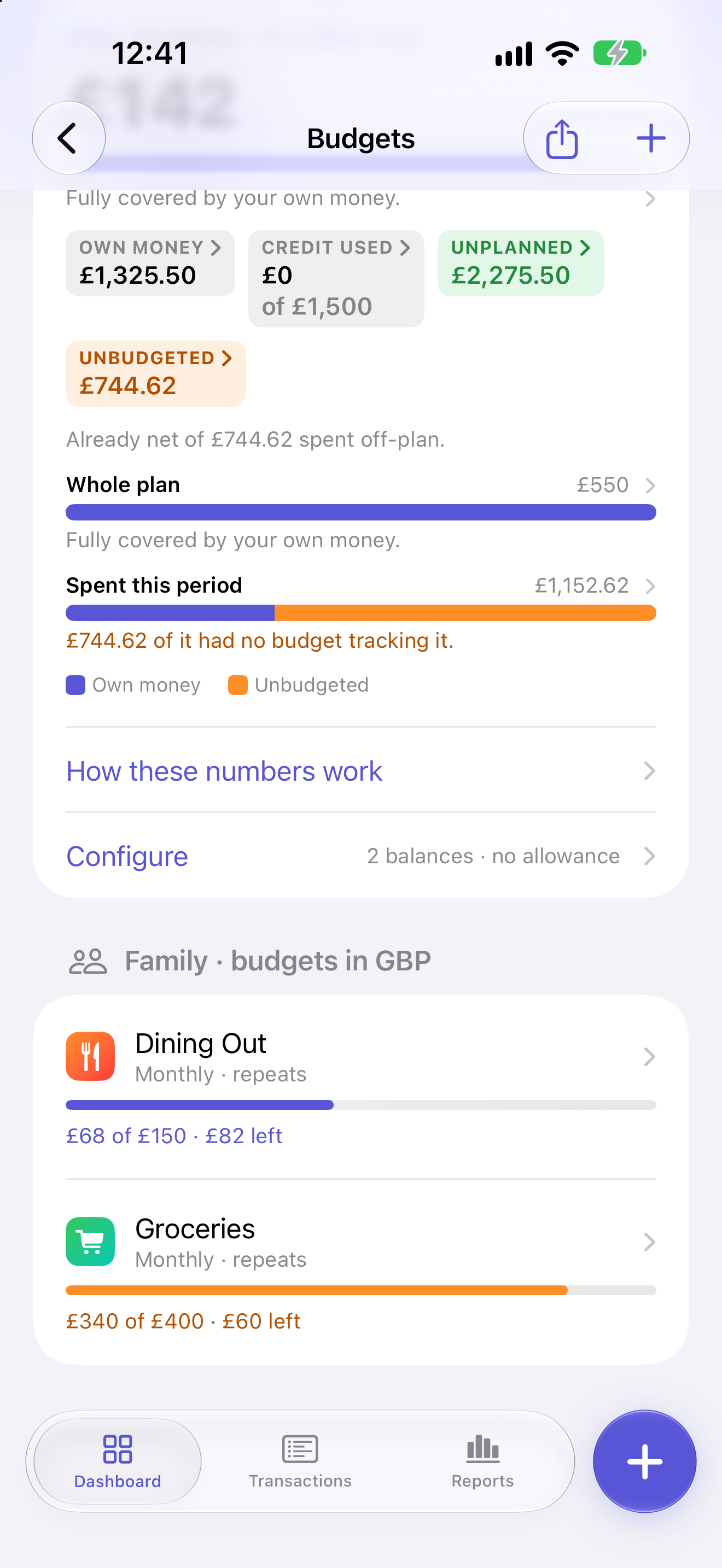
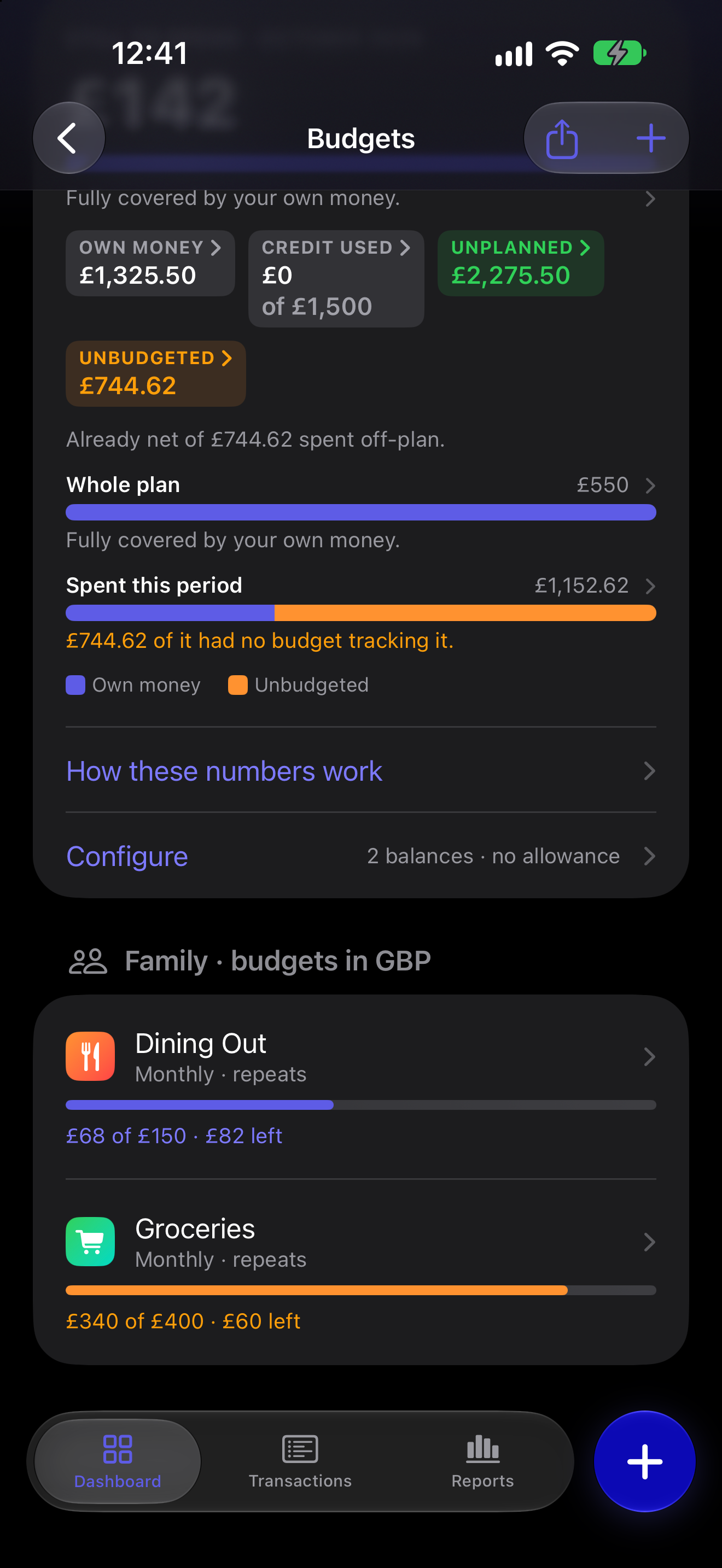
A budget covers one category, several, or every expense in the workspace. It runs for a calendar month, a week, or a custom range. A custom range can repeat monthly, such as from one payday to the day before the next. Progress is live, so an expense anyone adds counts against it at once. You get an alert as you approach the line, at 80% unless you pick another share, and another when you pass it. Each budget also keeps its history: this period and up to 11 before it, set against its current limit.
The Budget Summary explains what the numbers mean rather than only showing them. It sets what your budgets still allow against the balances meant to cover it. Every figure opens to the sum behind it, worked with your own numbers. The owner switches the summary on once the workspace keeps balances. To use your budgets somewhere else, export them as a PDF or an image.
Balances
Balances are optional named accounts your money moves through, such as Card, Cash or Savings. Each carries its own currency, fixed when you create it, an allow-negative switch and an optional credit limit. You can move money between two of them; only a fee, if your bank charges one, counts as an expense. A grand total adds them up in the workspace's base currency. It counts your own money only, so a credit limit never inflates it.
Balances are off by default. Turning them off later hides them without destroying anything you recorded. Only the owner turns them on or off, one workspace at a time.
Savings goals
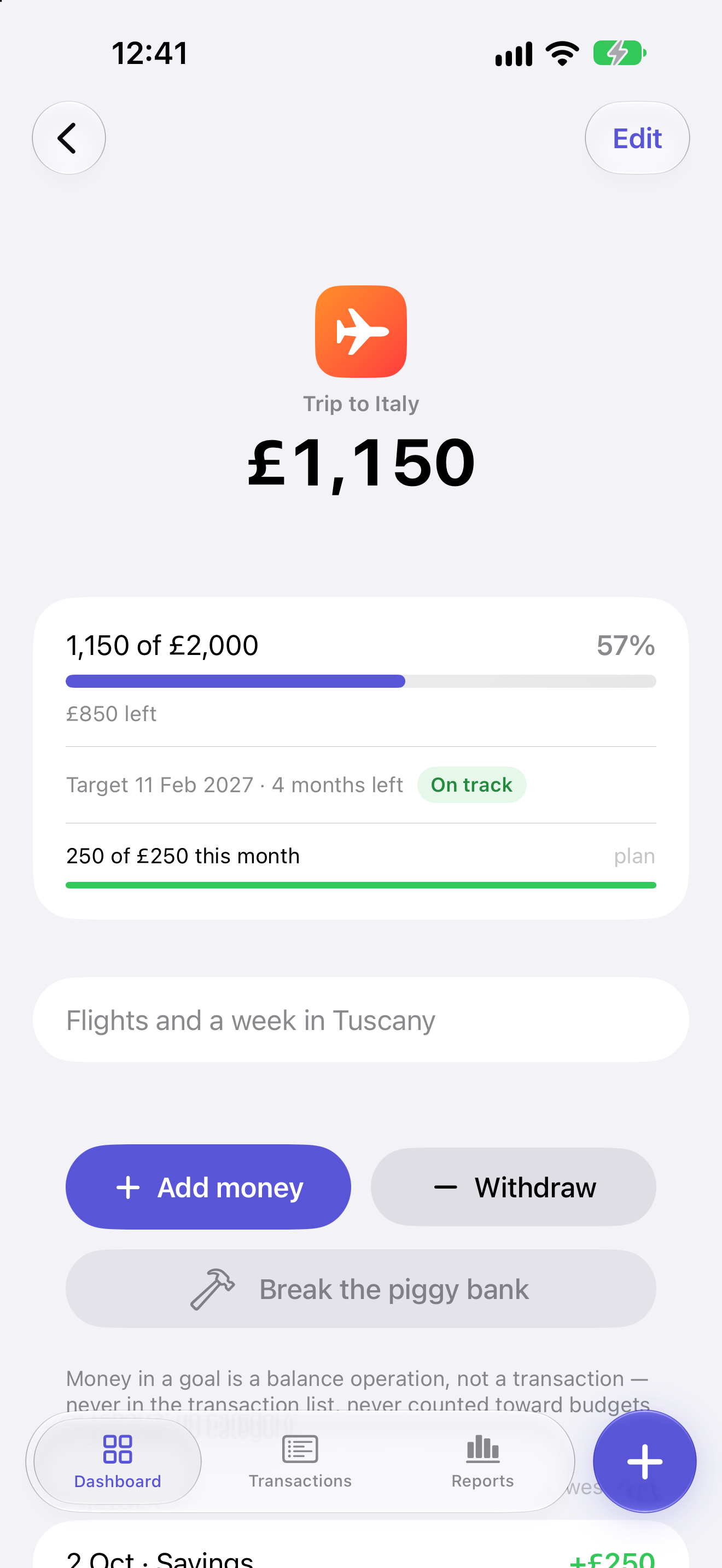
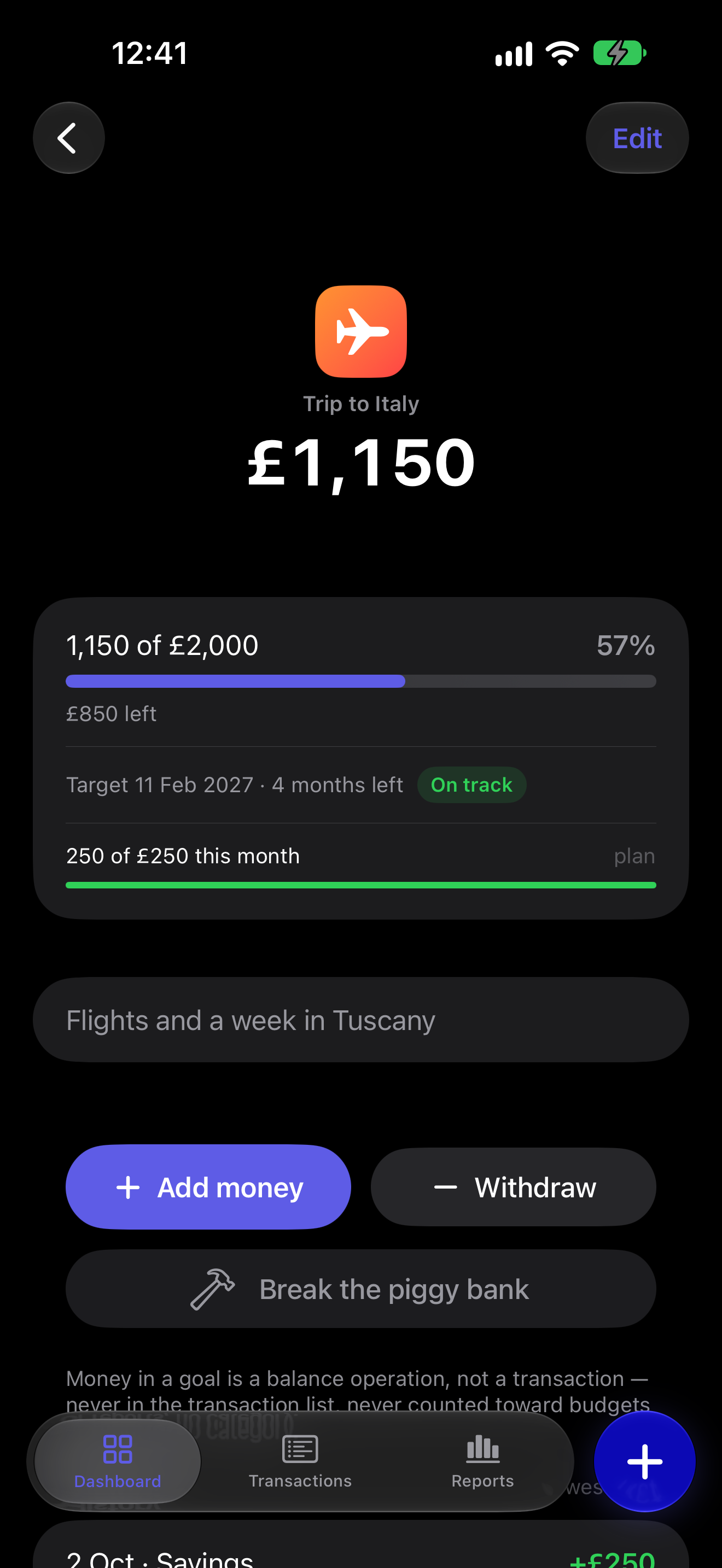
A savings goal is money set aside for a trip, a laptop or a safety net. Money in a goal is held out of your spendable balance without ever becoming a transaction, so it is neither spent nor counted as available. If the workspace keeps balances, adding to a goal takes the money from one of them, and a withdrawal puts it back.
A target amount, a target date and a saving plan, such as £50 a week, are each optional. With all three, the progress line says whether you are on track. If you are behind, it says what you would need to save per day, week or month to make it. A saving plan moves nothing on its own: every contribution is yours to make.
Reports
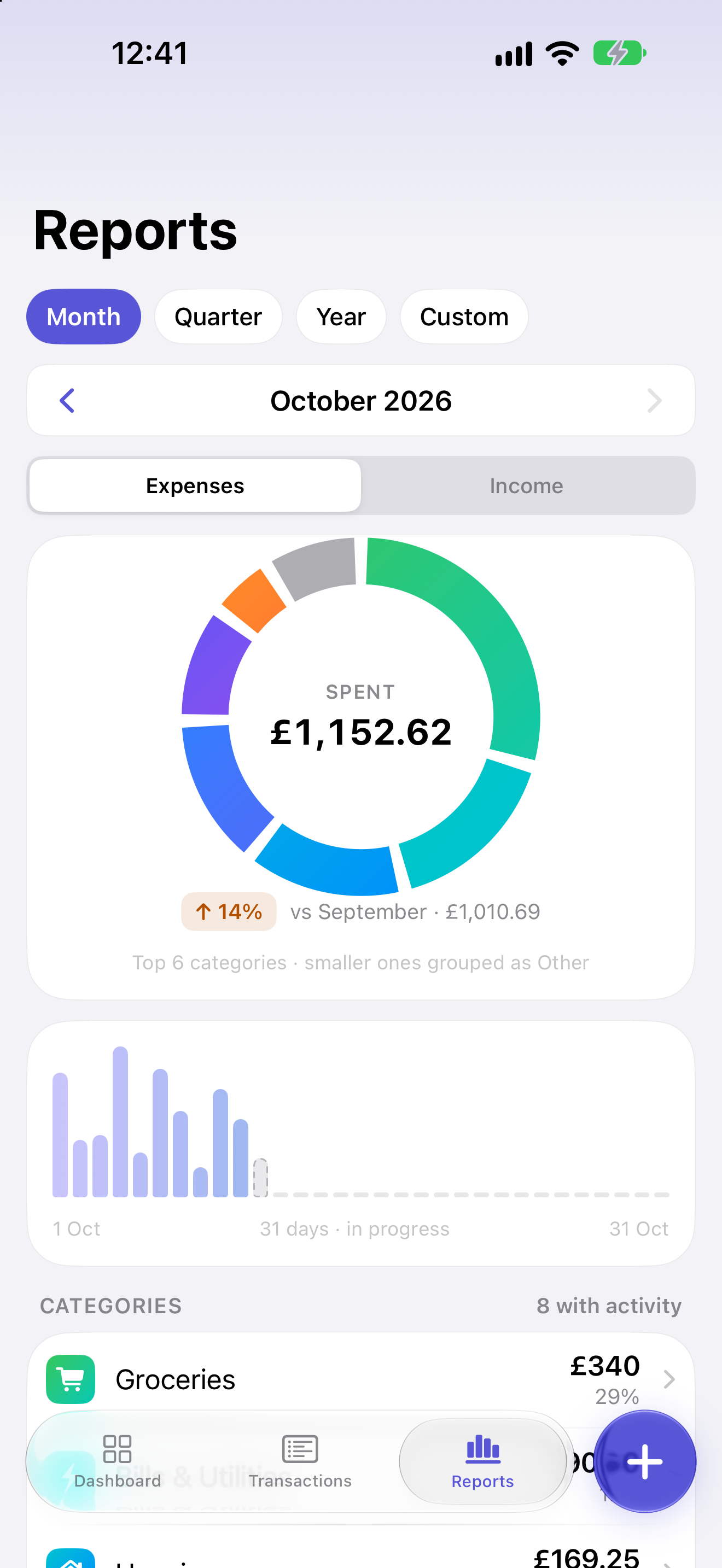
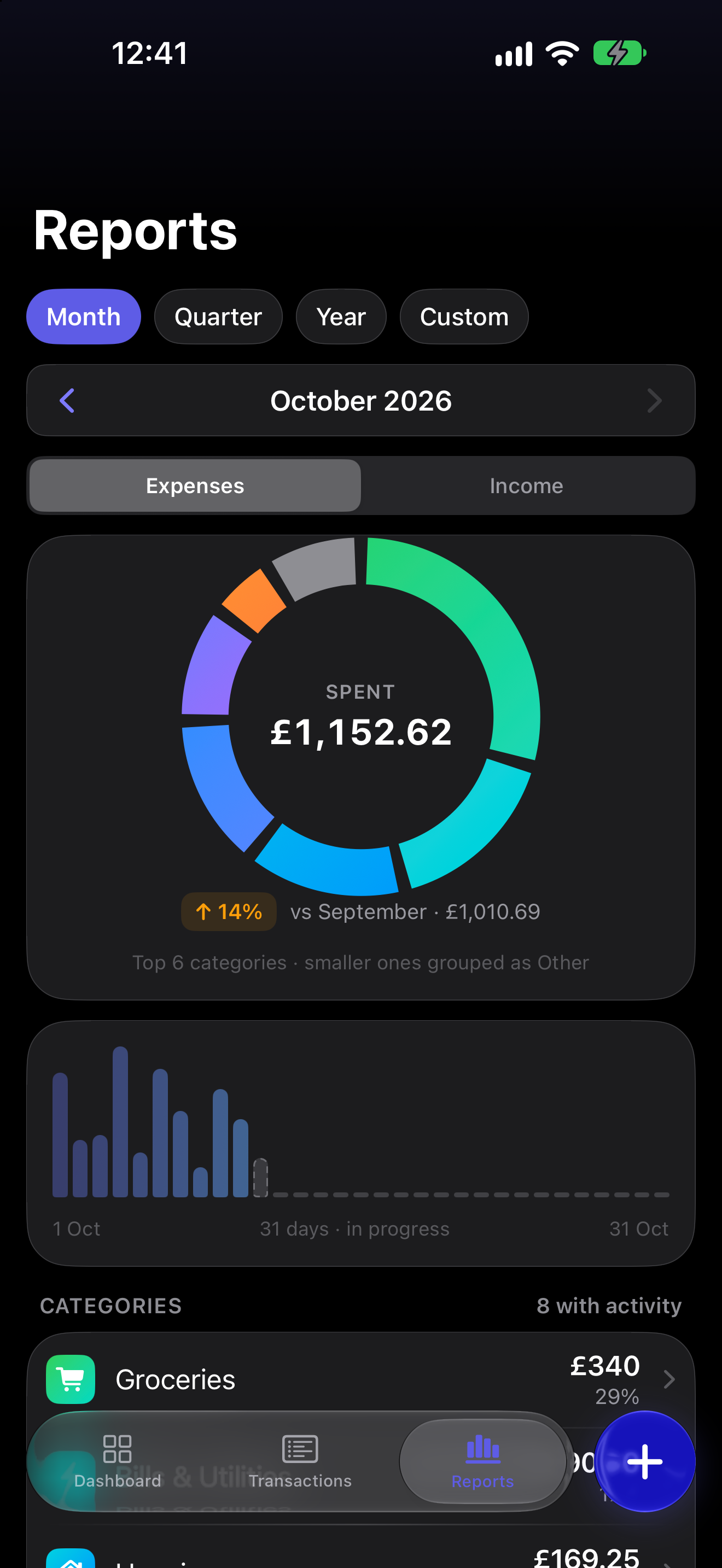
Reports answer one question for any period: where did the money go. Pick a month, a quarter, a year or your own range. A donut splits your spending, or your income, by category. Trend bars show it over time. The total comes with a delta against the period just before. Below sits every category, largest first, and any one of them opens to the transactions inside it.
Dashboard
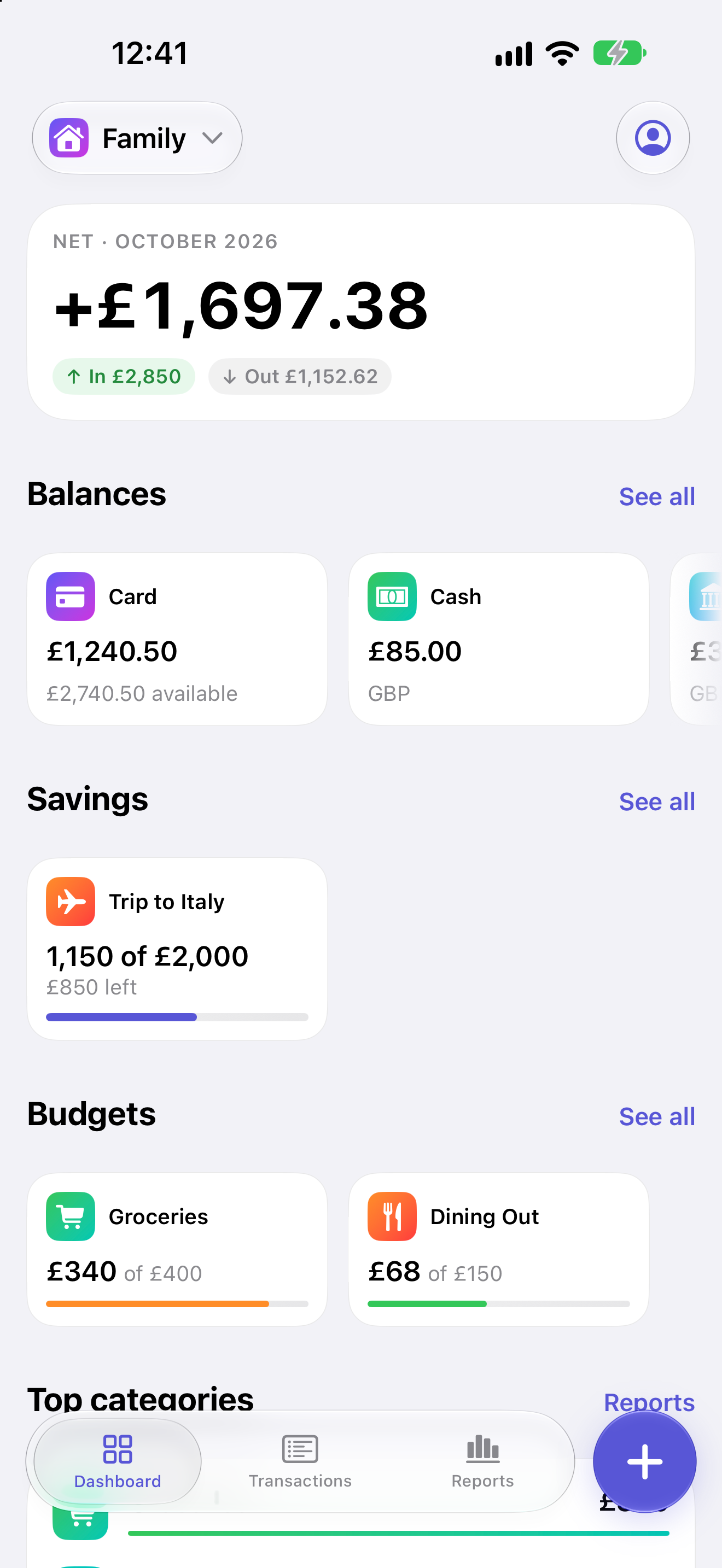
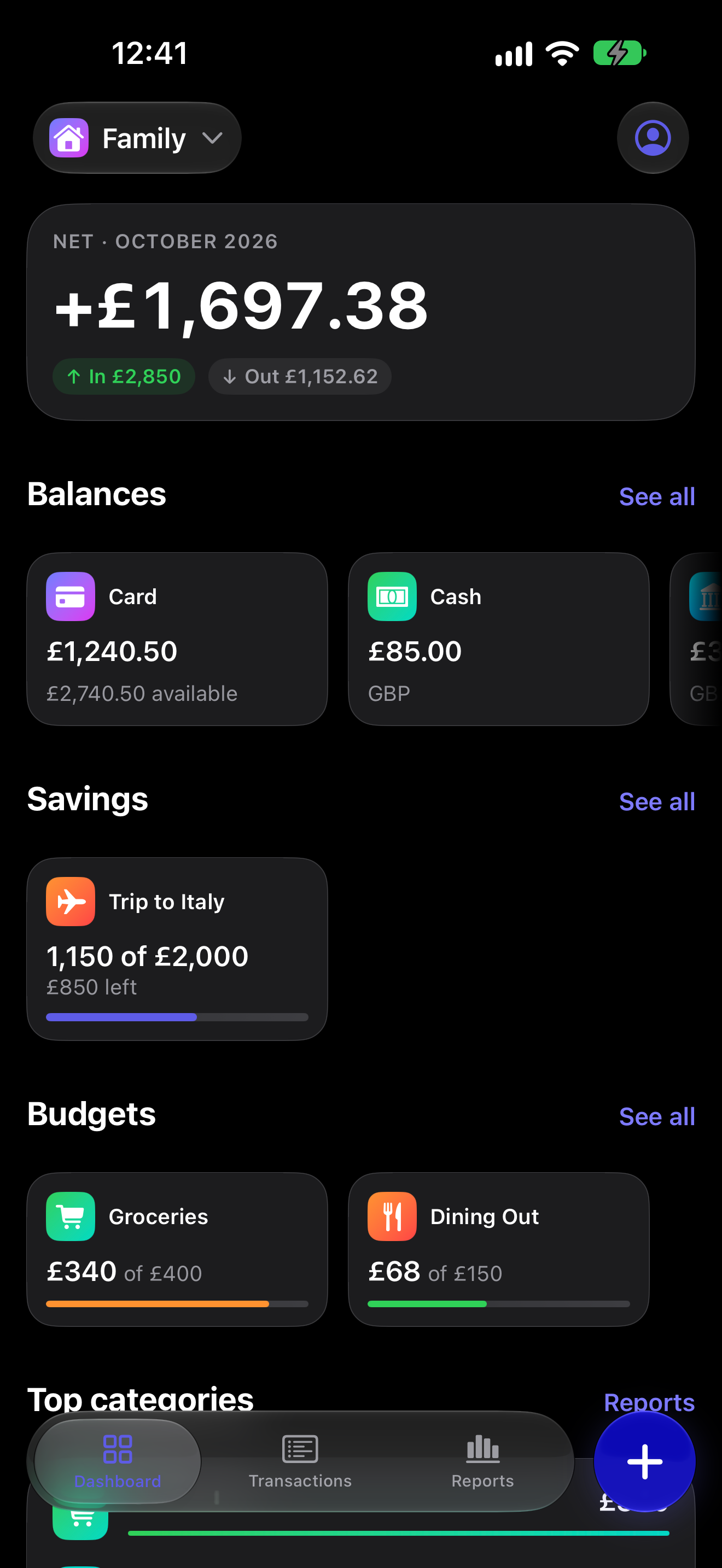
The dashboard is the screen that opens first. It shows this month at a glance: the net, what came in and what went out. Below sit your balances, savings goals and budget progress, then your top five categories and the ten newest transactions. Tap a balance, a goal or a transaction to open it, or See all for the full list. A member sees only the cards for the sections they can see.
Activity
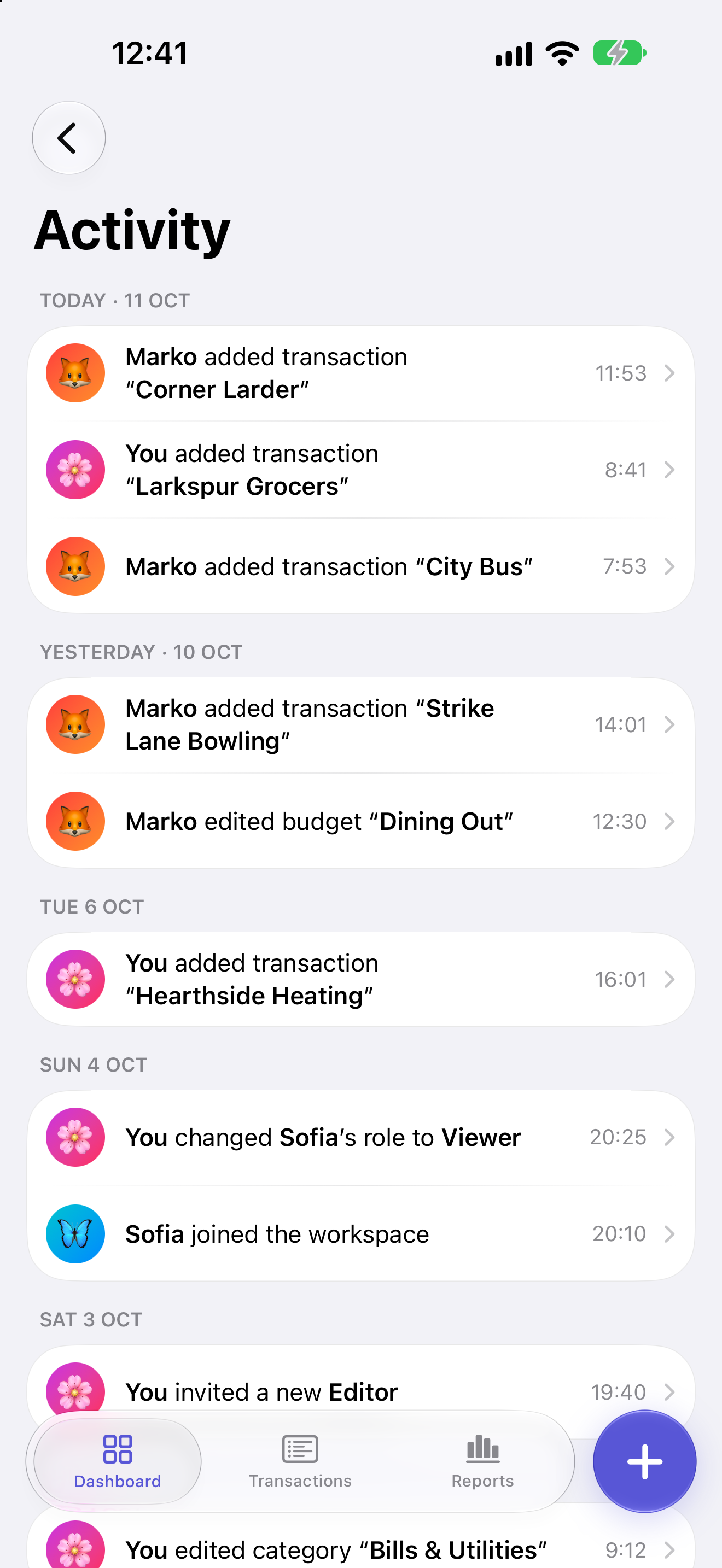
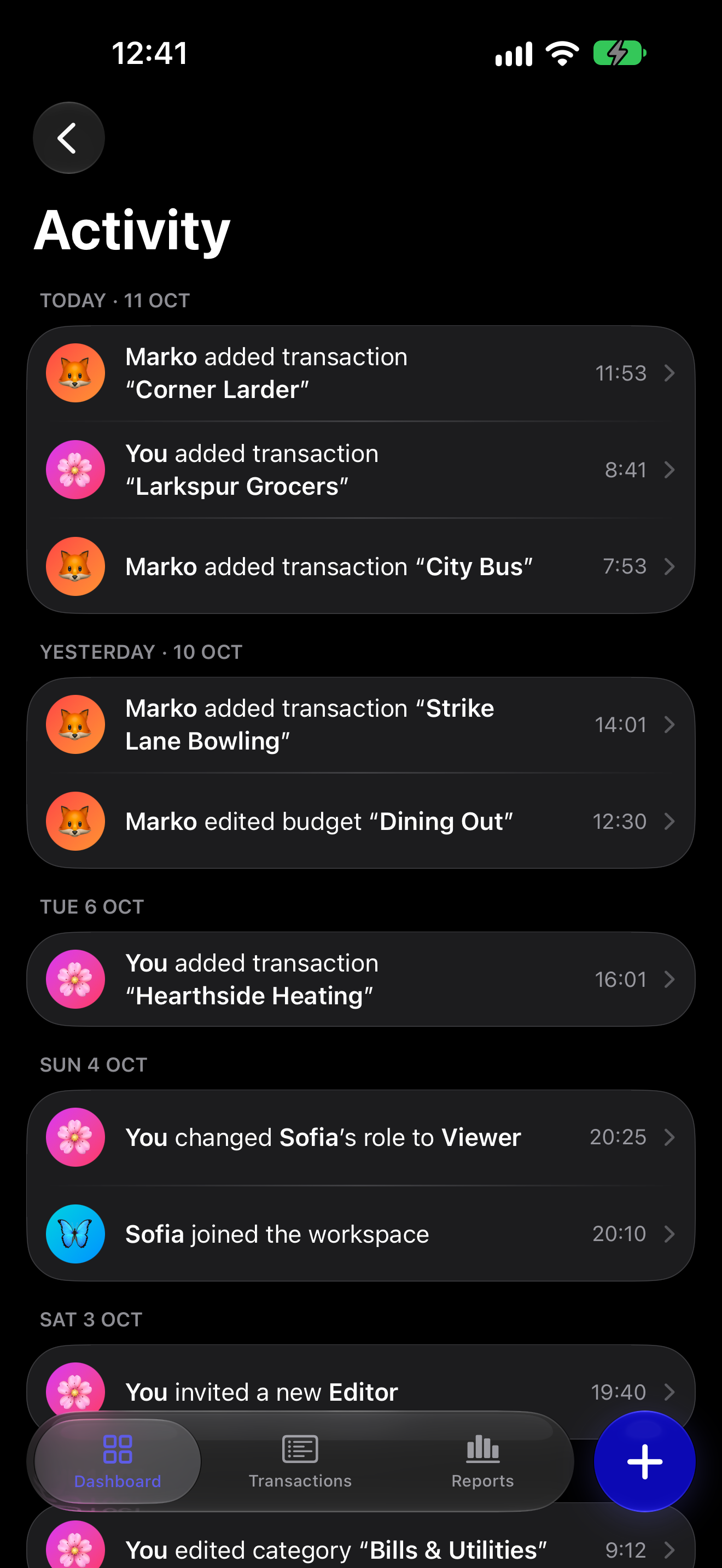
Activity is a running feed of the changes in a workspace, with the name of the person who made each one and the time. Transactions, budgets, categories and members are in it, and so are the workspace's name, icon, colour and currency. So are a savings goal's creation, edits and end. "Who moved this and when" is a question with an answer. Nobody can edit or delete a line, the owner included.
Notifications
Notifications cover budget alerts and workspace activity, plus a daily reminder to log what you spent and a weekly recap. You switch each kind on or off on its own rather than all or nothing. For activity, that goes down to the kind of change: transactions, budgets, categories, members or the workspace itself. An activity notification names the person and the change, never an amount.
Reminder switches are per device. Activity switches follow your account, because the server that sends them is the one that reads them.
Privacy and access
You can start as a guest, without an account. Link Apple, Google or email when you want Skarb on a second device, or want to share a workspace or join one. Everything you entered as a guest stays. App Lock is off until you turn it on. Then it asks for Face ID, Touch ID or your device passcode on every cold launch, and on iPhone and iPad after 30 seconds away.
Per-member section visibility keeps each person to the parts of a shared workspace the owner chose. Deleting your account really deletes it: your sign-in, your files and every workspace you own, for everyone in it. What you added to someone else's workspace stays there, credited to "Deleted account". Read the privacy policy.
Where it runs
iPhone in portrait, iPad in every orientation with multiple windows and keyboard shortcuts, and Apple Silicon Macs, which run the iPad app. iOS 26.5 or later. English and Ukrainian, switchable inside the app. Your data is in the cloud and syncs across your devices in real time, and the app keeps working offline and catches up when it reconnects.
All of it is free. There is no paid tier and nothing is held back.
Skarb is on the App Store.
Download Skarb on the App Store